

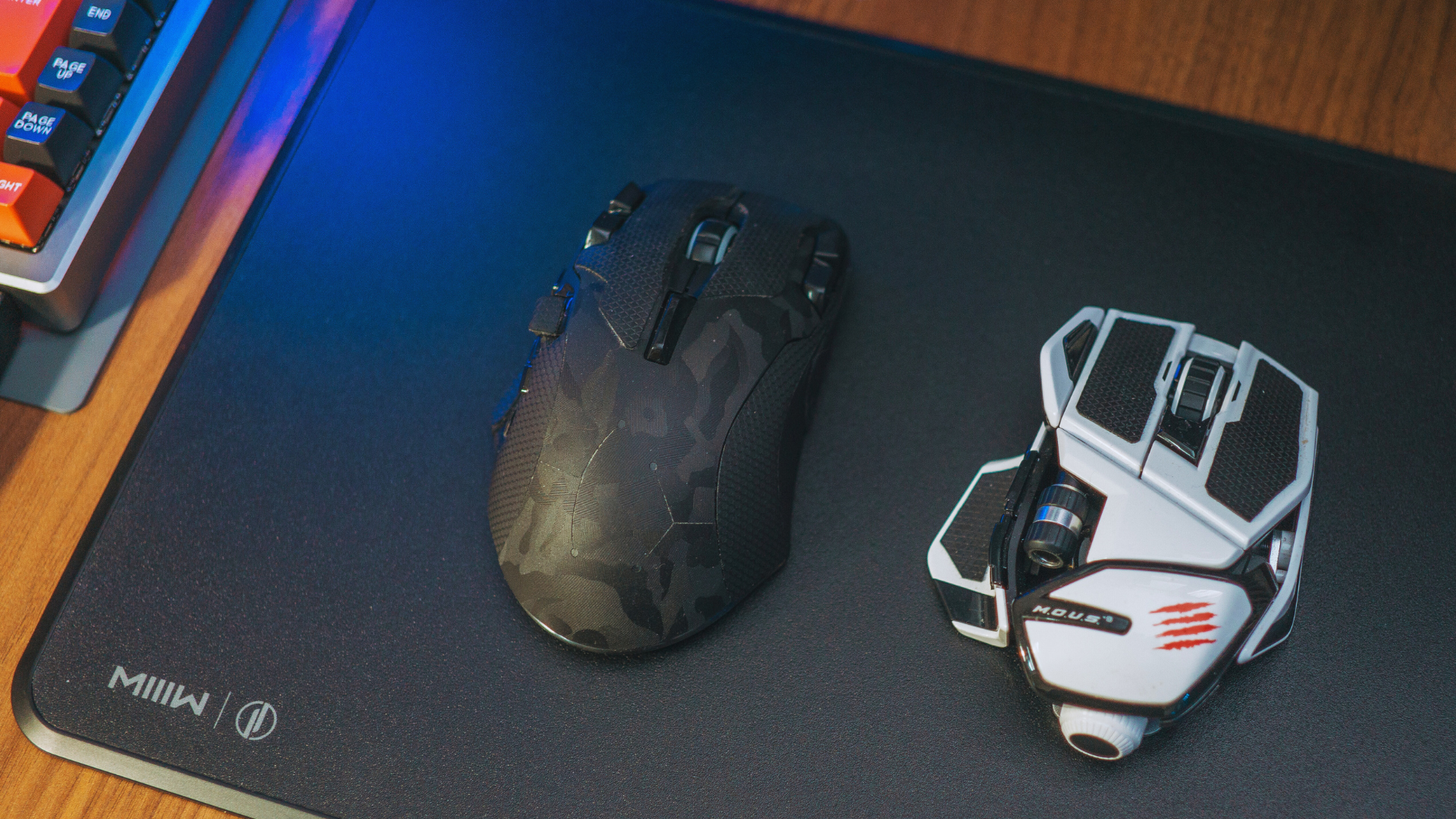
Choosing the best gaming mouse settings can significantly improve your performance and comfort during gameplay. Settings like DPI (dots per inch), polling rate, and sensitivity directly affect how your mouse responds to movements. The ideal gaming mouse settings balance precision and speed, tailored to your game style and personal preference.
Many gamers overlook the importance of customizing these settings, relying on defaults that may not suit their needs. Adjusting your mouse correctly can reduce fatigue, increase accuracy, and enhance reaction time, giving you an edge in competitive play.
This article breaks down the essential settings and explains how to optimize them for different types of games. Understanding these adjustments will help you make informed choices to elevate your gaming experience.
Understanding Key Mouse Settings
Adjusting mouse settings like speed, accuracy, and response time is crucial for consistent in-game performance. These settings influence how your mouse reacts to movement and clicks, impacting precision and control.
DPI and Sensitivity
DPI (dots per inch) measures how far the cursor moves on screen relative to physical mouse movement. A higher DPI means faster cursor movement, while a lower DPI offers more precision. For gaming, DPI settings between 400 and 1600 are common, depending on game type and player preference.
Sensitivity combines DPI with in-game adjustments. It scales your mouse input within the game and can fine-tune cursor speed beyond DPI alone. Finding the right balance is key: too high reduces accuracy, too low slows reaction time. Most pros use low-to-moderate DPI with in-game sensitivity around 1.0 for accuracy.
Polling Rate
Polling rate is how often the mouse reports its position to the computer, measured in Hz (times per second). Common rates include 125, 500, and 1000 Hz. A higher polling rate means smoother and more responsive cursor movement.
For gaming, a 1000 Hz polling rate is preferred because it minimizes input lag. Lower rates (125 Hz) can introduce noticeable delay, affecting rapid, precise movements in fast-paced games. Most gaming mice offer adjustable polling rates to match system capability and reduce CPU load.
Acceleration and Deceleration
Mouse acceleration alters cursor speed based on how quickly you move the mouse. Positive acceleration increases cursor movement with faster mouse movement, while deceleration does the opposite. Many gamers disable acceleration to ensure predictable movement.
With acceleration off, the cursor moves a fixed distance regardless of speed, aiding muscle memory and precision. Deceleration is rarely preferred for competitive play as it reduces responsiveness. Testing these settings helps determine what feels consistent and accurate for your play style.
Optimizing DPI for Different Game Genres
Different game genres require tailored DPI settings to improve precision and movement comfort. Adjusting DPI based on specific gameplay needs can enhance control, reaction speed, and overall performance. Key factors include the speed of in-game movement and the need for accuracy.
First-Person Shooter Preferences
In first-person shooters (FPS), precision aiming is critical. A lower DPI, usually between 400 and 800, is preferred to provide better control when aiming at targets, especially in games like Counter-Strike or Call of Duty. Lower DPI reduces hand jitter and allows finer adjustment.
Players often pair a lower DPI with a larger mousepad to enable broad, controlled swipes for turning or tracking opponents. Some advanced gamers increase DPI slightly for fast turns but maintain a comfortable balance.
Using 6/11 or 400/800 DPI settings with consistent in-game sensitivity often works best. Avoid very high DPI values as they can decrease accuracy on small targets.
MOBA and RTS Recommendations
For multiplayer online battle arena (MOBA) and real-time strategy (RTS) games, faster cursor movement is generally beneficial. Recommended DPI ranges from 1000 to 1600 to allow quick and precise selections, while maintaining accuracy on small interface elements.
Faster mouse movement is useful for rapid map navigation and multiple unit commands. The settings help in skill placement and quick reflexes required in games like League of Legends or StarCraft.
Players benefit from higher DPI combined with moderate in-game sensitivity to balance speed and control for both strategic oversight and micro-management.
MMORPG and RPG Adjustments
Massively multiplayer and role-playing games typically require a DPI setting that supports both quick navigation and occasional precision targeting. A DPI range of 800 to 1200 is common, offering flexibility for different gameplay elements.
Fast movements help in exploration or targeting during combat, while precision is needed for skill execution or menu navigation. Players often adjust DPI based on whether they focus more on combat or general navigation.
Mixing DPI with adjustable in-game sensitivity allows adapting to different in-game situations, which is helpful in titles like World of Warcraft or Final Fantasy XIV.
Polling Rate Settings Explained
Polling rate determines how frequently your mouse reports its position to the computer. It impacts responsiveness and precision, especially in fast-paced games where every millisecond counts. Selecting the right polling rate can improve your control without causing input delays or excessive CPU load.
What Is Polling Rate?
Polling rate is measured in Hertz (Hz) and indicates how many times per second your mouse sends data to the computer. A polling rate of 1000 Hz means the mouse reports its position 1000 times each second, or every 1 millisecond.
Higher polling rates reduce input lag but require more processing power from the system. Lower rates, like 125 Hz (8 ms per report), may introduce slight delays, which can be noticeable in competitive gaming. Most modern gaming mice support adjustable polling rates ranging from 125 Hz up to 1000 Hz or more.
Choosing the Best Polling Rate for Gaming
For competitive gaming, a polling rate of 500 Hz or 1000 Hz is recommended. This balances responsiveness with system performance. Most esports professionals prefer 1000 Hz for minimal input lag.
If your CPU is older or your system struggles with high rates, 500 Hz is a reasonable compromise. Use lower polling rates only if you experience instability or increased CPU usage at higher settings.
Adjust polling rates via your mouse software or operating system settings. Always test changes in your favorite games to find the sweet spot for smooth, accurate cursor movements.
Advanced Mouse Configuration Options
Fine-tuning your gaming mouse settings can improve precision and responsiveness. Key options like movement correction, sensor distance, and button roles allow for a more personalized experience.
Angle Snapping and Smoothing
Angle snapping adjusts mouse input to straighten slightly curved movements. This can help with drawing straight lines, but may reduce accuracy in fast, precise actions needed for gaming. Many competitive gamers prefer to disable angle snapping to maintain raw input.
Smoothing averages mouse movements over time, softening abrupt changes. While this can create a fluid cursor path, it introduces input lag and lowers responsiveness. Most gaming mice allow toggling smoothing off to preserve sharp, real-time control.
Use angle snapping and smoothing cautiously. Test their effects in-game to decide if the trade-off between steadiness and precision suits your play style.
Lift-off Distance Customization
Lift-off distance sets how far you can raise the mouse before the sensor stops tracking. A low lift-off distance prevents cursor drift when repositioning the mouse without affecting aiming. This feature is especially useful in high-sensitivity setups.
Adjust lift-off distance according to your gaming surface and mouse pad thickness. Some mice offer several preset levels or software sliders for precise control. Experiment to find the minimal lift-off that avoids unwanted movement but respects your preferred mouse-lift habits.
Button Assignment and Macros
Customizing button assignments lets gamers map useful commands directly to mouse buttons. Most gaming mice offer software to reassign standard, additional side, or DPI-switch buttons.
Macros automate complex key sequences or repeated actions. Use this feature to execute combos, reloads, or inventory management quickly. Avoid macros that violate game rules, as many competitive environments restrict their use.
Organizing buttons logically improves reaction times and can reduce keyboard reliance. Regularly review assignments to optimize your workflow for specific games or genres.
Software and Driver Tweaks
Optimizing your gaming mouse involves adjusting settings across different platforms. Fine-tuning these options improves accuracy, response time, and comfort.
In-Game Mouse Settings
Most games allow customization of mouse sensitivity, acceleration, and smoothing. It’s important to disable mouse acceleration if precision is a priority, as it causes inconsistent cursor movement.
Adjust sensitivity to find a balance between quick turning and fine aiming. Many competitive players prefer lower sensitivity paired with larger mouse pads for control.
Turning off mouse smoothing prevents artificial interpolation, giving you cleaner input data. Some games also offer raw input options, which bypass operating system interference.
Manufacturer Software Utilities
Gaming mouse manufacturers provide proprietary software for advanced customization. These utilities enable DPI adjustments, button remapping, and lighting control.
Use the software to set different DPI profiles for specific games or tasks. Profiles can be switched on-the-fly, allowing rapid adaptation to various gameplay scenarios.
Button programming lets you assign macros or actions to extra buttons. This can streamline repetitive in-game actions or enhance functionality.
Firmware updates via these utilities can fix bugs or improve hardware performance. Regularly check for updates from your mouse brand’s official site.
Windows Mouse Settings
Windows settings influence how your mouse behaves outside games. Adjusting the pointer speed modifies sensitivity but isn’t the same as DPI.
Disabling Enhanced Pointer Precision turns offthe Windows mouse acceleration system-wide. This is preferred for gaming to maintain input consistency.
The Polling Rate can sometimes be adjusted through drivers to improve input speed. Higher polling rates reduce latency but may increase CPU usage.
For optimal results, match Windows pointer speed to a neutral setting (often 6/11) and disable acceleration features. This creates a stable baseline for gaming performance.
Practical Tips for Testing and Calibrating
Testing and calibrating your gaming mouse optimizes its responsiveness and accuracy. Adjustments to surface settings and grip styles are essential for precision and comfort during extended play sessions.
Surface Calibration
The mouse sensor interacts differently with varied surfaces, affecting tracking accuracy. Use a consistent mousepad designed for gaming to ensure uniform sensor response. If your mouse software supports it, run surface calibration tools to match the sensor to your pad’s texture.
Avoid reflective or uneven surfaces, as they cause jitter or skips. A hard, smooth cloth or plastic pad typically provides the best results. Test calibration by moving the mouse in slow, deliberate strokes and checking for smooth cursor movement without flutter or acceleration.
Make small adjustments to the DPI or lift-off distance based on test results to improve control. Recalibrate anytime you change your mousepad or where you play, as surface variance significantly impacts performance.
Hand Size and Grip Style Adjustments
Hand size and grip style affect how you control your mouse and the settings you should prioritize. Measure your hand length and width to determine if you need a larger or smaller mouse to reduce strain and enhance precision.
Identify your grip as palm, claw, or fingertip. Palm grips benefit from a higher weight and lower DPI for smooth, broad movements. Claw and fingertip grips often prefer lighter mice with higher DPI for quick flicks and tighter control.
Adjust polling rate and sensitivity settings to match your grip’s natural speed and range of motion. Testing different configurations while playing your most demanding games helps find the balance between speed and accuracy that suits your hand and style.
Common Mistakes to Avoid When Setting Up Your Gaming Mouse
One common mistake is using a sensitivity that is too high. High sensitivity can cause inaccurate movements, reducing precision in gameplay. It’s better to start low and adjust gradually until you find a comfortable balance.
Ignoring the polling rate is another frequent error. A low polling rate means slower communication between the mouse and the computer, which can result in input lag. For gaming, a polling rate of at least 500 Hz is recommended.
Many users also neglect proper DPI settings. Setting DPI exclusively depending on the manufacturer’s presets rather than testing what works for your grip and playstyle leads to suboptimal performance. Experiment with different DPI levels to find what fits best.
Disabling mouse acceleration is crucial. Mouse acceleration changes cursor speed based on movement speed, which can hinder muscle memory. Most competitive gamers keep acceleration off for consistent aiming.
Lastly, failing to configure button mappings properly can limit efficiency. Default button configurations may not suit every game or player. Customize buttons to streamline important actions and improve response time.
| Mistakes | Impact | Fix |
| High Sensitivity | Reduced accuracy | Start with low sensitivity; adjust slowly |
| Low Polling Rate | Input lag | Use a 500 Hz or higher polling rate |
| Ignoring DPI | Poor precision | Test and set DPI based on personal play |
| Mouse Acceleration | Inconsistent aiming | Turn off acceleration in settings |
| Default Button Mapping | Slower controls | Customize buttons for game convenience |
Conclusion
Choosing the right gaming mouse settings depends on personal preference and the type of game you play. Adjusting DPI, polling rate, and button assignments can enhance accuracy and comfort. Small tweaks often lead to noticeable improvements in performance.
Experimentation is key. Start with default settings, then gradually adjust sensitivity and acceleration until the mouse feels natural. Remember, consistent settings help build muscle memory.
Here’s a quick reference for common settings:
| Setting | Recommended Range | Notes |
| DPI | 400 – 1600 | Lower for precision, higher for fast movement |
| Polling Rate | 500 – 1000 Hz | Higher rates reduce input lag |
| Mouse Acceleration | Disabled | Generally avoided in competitive gaming |
Customizing your mouse buttons for specific in-game actions can increase efficiency and response time. Use the software provided by the mouse manufacturer to map buttons effectively.
Ultimately, the best gaming mouse settings are those that feel comfortable and consistent over long sessions. Focus on precision and control rather than simply maximizing numbers.