

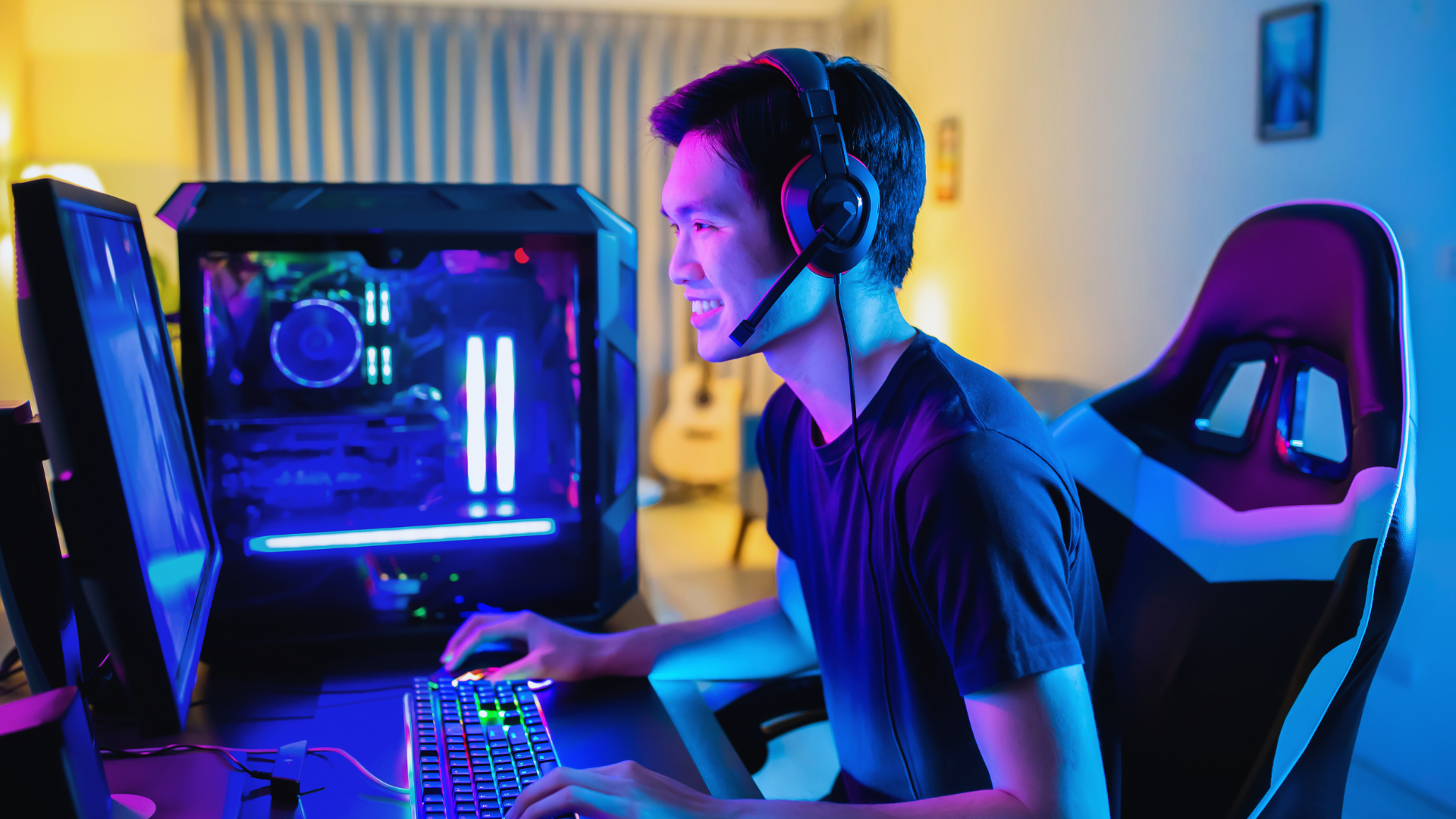
Increasing FPS in PC games often boils down to optimizing hardware settings and adjusting in-game graphics options. Lowering resolution, disabling unnecessary background processes, and updating your graphics drivers can significantly improve performance. These steps help your system allocate resources more efficiently for smoother gameplay.
Tuning settings like texture quality, shadows, and anti-aliasing also contribute to better frame rates. Beyond software tweaks, ensuring your PC’s cooling system is effective can prevent thermal throttling, which reduces performance under high temperatures.
Understanding FPS in PC Gaming
FPS, or frames per second, directly affects how smoothly a game runs on your PC. Understanding its impact involves knowing what FPS actually is, what causes it to drop, and how to measure it accurately.
What is FPS and Why It Matters
FPS stands for frames per second and indicates how many images your PC displays every second while gaming. Higher FPS means smoother motion and a more responsive experience. Typical targets are 60 FPS for standard gameplay and 120+ FPS for competitive gaming.
Low FPS causes stuttering, input lag, and visual freezing, which can reduce game enjoyment and performance. Games with fast-paced action and quick reactions benefit most from stable and high FPS rates. Many monitors have refresh rates that limit visible FPS, so matching FPS to your display’s capacity optimizes performance.
Common Causes of Low FPS
Low FPS often results from hardware limitations like an outdated GPU, insufficient RAM, or a slow CPU. Overheating components can throttle performance, reducing FPS during long gaming sessions.
Software issues also affect FPS, including running games at settings too high for your hardware, background programs using resources, and outdated drivers. Network issues usually don’t affect FPS, but can impact gameplay smoothness due to lag.
How to Check Your Current FPS
Most modern games offer built-in FPS counters in their settings or developer consoles. Enabling this option provides real-time frame rate monitoring during gameplay.
Alternatively, third-party programs like MSI Afterburner or software overlays such as NVIDIA GeForce Experience and AMD Radeon Software display FPS easily. Windows users can also activate FPS counters through Xbox Game Bar by pressing Win + G and looking under Performance.
Tracking FPS helps identify when adjustments are necessary to improve performance.
Optimizing In-Game Settings
Fine-tuning game settings can significantly improve performance without additional hardware upgrades. Key factors include balancing visual quality, resolution, and specific effects that impact frame rates.
Adjusting Graphics Quality
Lowering overall graphics quality often provides the most immediate FPS boost. Focus on settings like shadow detail, texture quality, and ambient occlusion. Shadows and lighting consume substantial resources, so reducing these can raise frame rates considerably.
Textures affect VRAM usage. Lowering texture resolution can help if your GPU has limited memory. Avoid completely disabling textures, as this can degrade the gaming experience excessively.
Use presets labeled “Medium” or “Low” if available, then customize individual settings. This approach balances visual clarity with smoother gameplay.
Tweaking Resolution and Refresh Rate
Reducing the game’s resolution decreases the number of pixels the GPU must render, often yielding the largest FPS gain. For example, moving from 4K (3840×2160) to 1080p (1920×1080) can double FPS on many systems.
Check your monitor’s native refresh rate and set the game to match it. Running a game at a higher refresh rate than your monitor supports does not improve FPS and can cause screen tearing.
If higher resolutions are important, consider lowering other settings to compensate rather than increasing resolution beyond your hardware’s capabilities.
Disabling V-Sync and Motion Blur
V-Sync synchronizes frame rates with your monitor’s refresh rate, but it can introduce input lag and reduce FPS if the GPU struggles to maintain the locked rate. Disabling V-Sync removes this limit and often improves FPS, but may cause screen tearing.
Motion blur effects increase GPU load and can blur visual clarity. Turning off motion blur improves FPS and makes fast movements clearer, which benefits competitive gameplay.
Disabling both features typically results in faster frame rendering and reduced latency, particularly on mid to low-end systems.
Updating and Optimizing System Software
Keeping system software current and well-configured can improve game performance by reducing bottlenecks and ensuring compatibility. Proper maintenance involves updating key drivers, managing operating system updates, and controlling resource-heavy background tasks.
Updating Graphics Drivers
Graphics drivers translate game code into instructions your GPU can execute. Outdated drivers can cause lower frame rates or graphical glitches. Visit your GPU manufacturer’s website—NVIDIA, AMD, or Intel—and download the latest driver version.
Using the manufacturer’s dedicated update app (like GeForce Experience or Radeon Software) can automate this process. Installing new drivers often includes performance optimizations and bug fixes targeted at recent games.
Check the driver release notes for details about game-specific improvements. Restart your PC after updating to ensure all changes are applied correctly.
Managing Windows Updates
Windows updates provide important security patches and optimize system functionality. However, certain feature updates or driver installs can temporarily impact gaming performance.
Configure Windows to install updates outside of gaming times. Use Settings > Update & Security > Advanced options to schedule restarts or pause updates during peak usage.
Ensure essential updates, especially for DirectX or system firmware, are installed. Keeping Windows current supports smoother software interactions and can fix compatibility issues that affect FPS.
Disabling Background Applications
Background applications consume CPU, memory, and disk resources, competing with games. Use Task Manager to identify and close unnecessary processes before gaming.
Common culprits include web browsers, streaming tools, and instant messaging apps. Disable auto-start programs via Task Manager > Startup to prevent them from running at launch.
Consider using Game Mode in Windows, which prioritizes gaming processes by reducing background activity. This frees system resources and can help stabilize frame rates during gameplay.
Hardware Upgrades for Better FPS
Improving FPS often requires targeted hardware improvements that directly affect game performance. Prioritizing the components that handle graphics rendering, memory management, and data access can lead to the most noticeable gains.
Upgrading Your Graphics Card
The graphics card (GPU) is the primary factor in gaming FPS. Moving to a newer GPU with higher clock speeds and more VRAM can significantly boost frame rates, especially in modern games using advanced graphics settings. Models from NVIDIA’s RTX series or AMD’s RX lineup are current industry standards.
Pay attention to the GPU’s compatibility with your motherboard and power supply. Also, consider features like ray tracing and DLSS, which can improve visuals without drastically lowering FPS. When upgrading, balance the budget with the need for future-proofing by selecting cards that support the latest DirectX versions.
Adding More RAM
Sufficient RAM prevents bottlenecks during gameplay. Most modern games recommend at least 16GB for smooth performance. Increasing RAM improves loading times and reduces stuttering by allowing more game data to be accessed quickly.
Match the RAM speed and latency to your motherboard and CPU capabilities. Dual-channel setups can enhance memory bandwidth, providing better FPS stability. Avoid excessive amounts beyond what your system or games utilize, as it may not yield noticeable improvements.
Choosing the Right Storage Drive
Switching from a traditional HDD to a Solid State Drive (SSD) can drastically decrease load times. Faster game asset streaming reduces in-game lag or pop-in, indirectly supporting smoother gameplay.
NVMe SSDs offer the best speeds compared to SATA SSDs, with quicker data transfer rates. While storage type doesn’t increase raw FPS, it enhances overall gaming responsiveness and load consistency. Ensure your system supports the NVMe interface for optimal benefits.
System Optimization Techniques
Improving FPS involves precise adjustments to hardware settings, proper maintenance of components, and configuring power options. These steps can significantly impact performance without needing new hardware.
Overclocking CPU and GPU Safely
Overclocking increases the clock speed of your CPU or GPU to boost performance beyond factory settings. Start by gradually raising the frequency in small increments, testing stability with stress tests after each change.
Monitor temperatures closely; keep CPU under 85°C and GPU under 90°C to avoid overheating. Use software tools like MSI Afterburner for GPU overclocking and Intel XTU or AMD Ryzen Master for CPU tuning.
Ensure your cooling system is sufficient—additional fans or liquid cooling may be needed. Overclocking voids some warranties, so proceed carefully and understand the risks.
Cleaning Dust from PC Components
Dust build-up inside your PC obstructs airflow, increasing temperatures and reducing component efficiency. Open your case and use compressed air to clean fans, heatsinks, and vents regularly.
Focus on the CPU cooler, GPU fans, and power supply vents as these areas accumulate the most dust. Hold fans still while cleaning to avoid damage.
Cleaning should be done every 3-6 months, or more frequently in dusty environments. Fresh airflow helps maintain lower temperatures, which supports higher FPS during gaming.
Optimizing Power Settings
Adjusting power plans in your operating system can improve performance by prioritizing full hardware utilization. On Windows, switch to the High Performance or Ultimate Performance plan in the Control Panel under Power Options.
Disable CPU throttling features like Intel SpeedStep or AMD Cool’n’Quiet in BIOS to keep processors running at max frequency. Avoid power-saving features that reduce CPU or GPU speeds during gaming.
Ensure your laptop or PC is plugged in during gameplay to prevent power savings from limiting performance. These tweaks help maintain consistent FPS by eliminating automatic downclocking.
Advanced Software Tweaks
Adjusting software settings at a detailed level can unlock better frame rates without changing hardware. This involves optimizing game settings, launch parameters, and leveraging third-party utilities designed for performance enhancement. Each method targets specific performance drivers and can be combined for the best results.
Configuring Game-Specific Settings
Most modern games include extensive graphical and performance options. Lowering or disabling features such as motion blur, ambient occlusion, and depth of field can reduce GPU load significantly.
Focus primarily on settings tied directly to rendering complexity, such as shadow quality, texture resolution, and anti-aliasing. For example, switching anti-aliasing from MSAA to FXAA can save FPS with minimal visual loss.
Some titles allow adjustment of frame rate caps and V-Sync options. Disabling V-Sync removes input lag and can increase FPS, but might cause screen tearing. Review each option carefully based on the game’s engine and your hardware.
Modifying Launch Options
Launch options let you customize how a game starts and can improve performance. This is done by adding commands in the game’s shortcut properties or via platforms like Steam or Epic Games.
Common commands include:
- -novid (skip intro videos)
- -high (prioritize CPU scheduling)
- -threads X (assign specific CPU cores)
- -fullscreen (force full screen for better GPU focus)
Each game supports different commands; consult official or community resources for relevant syntax. Use commands to reduce unnecessary processes or force higher priority for better FPS consistency.
Using Performance-Boosting Tools
Dedicated tools like Razer Cortex or MSI Afterburner can automate optimization. Razer Cortex closes unnecessary background apps and prioritizes game processes to free system resources.
MSI Afterburner allows manual tuning of GPU clock speeds, voltage, and fan control. Slight overclocking can increase frame rates but requires monitoring temperatures carefully to avoid hardware damage.
Windows tools like Game Mode and Graphics Settings enable you to assign GPU priority to games for a more efficient resource distribution. Use these utilities alongside in-game settings for maximum gains.
Network Optimization for Online Games
Improving your network connection can greatly affect how smoothly online games run. Focus on minimizing delays and configuring settings for consistent data flow to reduce interruptions during gameplay.
Reducing Latency
Latency, or ping, measures how quickly your data travels to the game server and back. Lower latency means faster reactions and less lag. Use a wired Ethernet connection instead of Wi-Fi to cut down interference and signal loss.
Close background applications that use bandwidth, such as streaming services or software updates. Choose game servers geographically closer to your location to reduce travel time for data. Additionally, reboot your router regularly to clear any network congestion.
Monitoring your ping with tools like PingPlotter or the in-game net graph helps identify spikes or instability. If persistent issues occur, contacting your ISP about possible upgrades or routing improvements can be worthwhile.
Optimizing Network Settings
Adjust your PC and router settings to prioritize gaming traffic. Enabling Quality of Service (QoS) on your router allows it to allocate more bandwidth to your gaming device, minimizing lag during heavy internet use.
Setting a static IP address for your gaming PC can help with port forwarding, which improves connections by opening specific communication paths. Forward necessary ports for your game to reduce connection drops.
Adjusting the in-game network settings can also help. Lowering download rates or adjusting buffer sizes smooths out inconsistencies when bandwidth fluctuates. Ensure your network drivers are up to date to maintain optimal communication between your hardware and the network.
Troubleshooting Persistent FPS Issues
Persistent FPS problems often stem from specific hardware or software limitations. Addressing these requires pinpointing where performance is restricted and ensuring hardware and software work well together without conflicts or outdated components.
Identifying Bottlenecks
A bottleneck occurs when one component limits overall system performance. Common culprits include the CPU, GPU, RAM, or storage devices. Use tools like MSI Afterburner or Task Manager to monitor usage levels during gameplay.
If the GPU is at 100% while the CPU remains under 70%, the GPU likely limits frame rates. Conversely, a CPU at max load with a low GPU load suggests a processor bottleneck. RAM shortages can also cause stuttering, especially if system memory usage hits 90% or above.
Upgrading the bottlenecked hardware part or adjusting in-game graphics settings can balance performance. For example, lowering texture quality reduces GPU load, while closing background apps frees CPU resources.
Resolving Compatibility Problems
Compatibility problems often cause FPS instability. Ensure your GPU drivers are current by downloading the latest from NVIDIA, AMD, or Intel’s official sites. Outdated drivers can cause crashes or poor optimization.
Windows updates can also impact performance. Verify you’re on an up-to-date but stable OS version; avoid beta releases. Sometimes, certain game versions or mods conflict with hardware or drivers.
Use compatibility mode in Windows for older games or adjust the game’s graphics API (DirectX, Vulkan) to improve stability. Disabling overlays like Discord or Steam In-Game can reduce performance hits caused by software conflicts.
Final Tips for Sustained Performance
Maintaining high FPS requires regular system upkeep. Keep your PC clean from dust to prevent overheating, which can throttle performance. Use compressed air to clean fans and vents every few months.
Update drivers consistently. Graphics card manufacturers release updates that optimize performance for new games and fix bugs. Check for updates monthly or enable automatic updates.
Manage your background applications. Close unnecessary programs before launching games to free up CPU and RAM resources. Use Task Manager to identify resource-heavy processes.
Adjust in-game settings mindfully. Balance graphics quality and frame rates by tweaking options like shadows, textures, and anti-aliasing. Lowering settings can reduce GPU load without strongly affecting visual clarity.
Monitor your system’s temperature and performance using tools like MSI Afterburner or HWMonitor. Consistent monitoring helps detect issues early and ensures your hardware runs within safe parameters.
| Tip | Description |
| Clean PC | Remove dust to avoid overheating |
| Update Drivers | Keep GPU drivers current |
| Close Background Apps | Free CPU/RAM by closing non-essential software |
| Adjust Graphics Settings | Balance visuals and FPS |
| Monitor System Health | Use software tools for real-time metrics |
Power settings also affect FPS. Switch to “High Performance” mode in Windows to prevent the CPU from throttling. Ensure your power plan prioritizes performance over energy saving.
Sustained FPS is a combination of hardware care, updated software, and smart configuration. Regular attention to these aspects keeps games running smoothly over time.
Choosing the right gaming console depends on your priorities, such as game library, performance, and budget. The best console for you matches your preferred types of games, desired features, and how much you are willing to spend.
Consider whether you value exclusive titles, online services, or hardware power. Each console offers different strengths, so understanding these can simplify your decision.
This guide breaks down key factors to help you identify which console fits your needs, making the buying process more straightforward and less overwhelming.
Understanding Gaming Console Types
Gaming consoles vary based on design, portability, and how you interact with games. Each type offers different benefits depending on your lifestyle and gaming preferences. Knowing these differences helps in selecting a console that matches your needs.
Home Consoles
Home consoles are designed to connect to a TV or monitor and provide a stationary gaming experience. Popular examples include the PlayStation 5, Xbox Series X, and older models like the PlayStation 4. They typically have powerful hardware, supporting high-resolution graphics and fast processing.
These consoles require a stable setup with space for the device and accessories like controllers. They often serve as multimedia hubs, supporting streaming apps and Blu-ray playback. Because of their power and size, they are best suited for gaming at home.
Handheld Consoles
Handheld consoles focus on portability, allowing you to play games anywhere. Devices like the Nintendo Switch Lite and past models such as the Nintendo 3DS fall into this category. These systems have built-in screens and controls, eliminating the need for external displays.
Handhelds prioritize battery life and ease of use over raw performance, making them ideal for travel or gaming on the go. Their game libraries often feature titles optimized for shorter play sessions. However, they tend to have smaller screens and less powerful hardware than home consoles.
Hybrid Consoles
Hybrid consoles combine elements of both home and handheld systems. The Nintendo Switch is the primary example, enabling players to switch between docked TV mode and portable play. This design offers flexibility for different gaming situations.
They maintain fairly strong hardware while providing convenience for varied settings. Hybrid consoles use detachable controllers and seamless transitions between docked and handheld modes. This versatility appeals to gamers who want both power and mobility without owning two separate devices.
Key Features to Compare
When selecting a gaming console, several technical and usability aspects determine the overall experience. Key considerations include how well the system performs, the exclusive games it offers, its ability to play older titles, and how user-friendly it is during everyday use.
Performance and Graphics
Performance involves the console’s CPU, GPU, and RAM, which directly impact game loading speeds, frame rates, and visual fidelity. Higher-end consoles typically support resolutions up to 4K with HDR, delivering sharper textures and smoother gameplay.
Look for features like SSD storage, which reduces load times significantly. Also, check whether the console supports ray tracing, a technology that enhances lighting effects for more realistic visuals.
Performance varies between consoles; a mid-range console might run games at 1080p but still deliver a stable 60fps. Understanding these specs in relation to your gaming preferences helps avoid overspending.
Exclusive Game Libraries
Exclusive games can define a console’s identity and appeal. Titles like The Legend of Zelda on Nintendo Switch, Halo on Xbox, and Spider-Man on PlayStation are only available on their respective platforms.
These unique games often leverage the hardware’s capabilities, showcasing what the console does best. A strong exclusive library could justify purchasing a less powerful system if those games interest you.
Consider not only current exclusives but also upcoming releases and the likelihood of future support. This forecast can impact long-term satisfaction with the console.
Backward Compatibility
Backward compatibility allows a console to run games from previous generations. This feature preserves your existing game collection and may grant access to larger libraries without extra cost.
Different systems vary widely. For example, Xbox Series X supports thousands of Xbox One, Xbox 360, and original Xbox games, often with improvements like faster load times or enhanced graphics.
PlayStation and Nintendo consoles tend to have more limited backward compatibility. Checking which games and accessories will work avoids surprises post-purchase.
User Interface and Experience
The UI affects how easily you navigate menus, access multiplayer modes, or manage digital libraries. An intuitive interface reduces friction, letting you spend more time gaming.
Consider customization options, voice commands, and integration with streaming services. Features like quick resume allow switching between games without closing them, saving time.
Controller design also impacts experience. Ergonomics, button layout, and haptic feedback vary, influencing comfort and precision during long sessions.
Assessing Your Gaming Needs
Choosing the right gaming console depends on how you play, the importance of online features, and whether you need a device for home or on the go. Understanding these factors helps narrow down what fits your lifestyle and gaming habits best.
Single-Player vs Multiplayer Preferences
If your focus is on solo gaming, prioritize consoles with strong single-player game libraries and solid offline capabilities. Look for exclusive titles that match your preferred genres, such as narrative-driven RPGs or adventure games.
Multiplayer-focused players should consider consoles offering robust online multiplayer support and access to popular multiplayer games. Fast online connectivity and low-latency servers improve multiplayer experiences. Cross-platform play capabilities can be important if friends use different consoles.
Consider whether local multiplayer or split-screen gaming matters, as some consoles have better support or exclusive modes for shared play. Balance single-player and multiplayer options based on your gaming habits.
Online Services and Subscriptions
Most consoles require subscriptions for online multiplayer, but the offerings vary significantly. Common services include PlayStation Plus, Xbox Game Pass, and Nintendo Switch Online.
Xbox Game Pass offers access to hundreds of games for a monthly fee, combining subscriptions and game ownership. PlayStation Plus tiers include online multiplayer, free monthly games, and cloud storage. Nintendo Switch Online is essential for many online games and includes classic title libraries.
Evaluate cost, available games, download options, and extra features like cloud saves and exclusive discounts. If you plan to play online or try many games, subscription services may provide better value.
Portability and Flexibility
Portability matters if you want to game away from your main setup. The Nintendo Switch is a leading option for hybrid home/portable play, featuring easy docking and handheld modes.
Most other consoles focus on stationary use and require TVs or monitors. Consider your living space and travel habits when prioritizing portability. Battery life and screen quality also influence the handheld experience.
If you game mostly at home and prioritize power or exclusive titles, a traditional console might be better. For flexible play in different locations, look for systems designed around portability and quick transitions.
Budget and Price Considerations
When selecting a gaming console, understanding the full financial commitment is essential. This includes the price of the console itself, the cost of games, and any additional accessories needed to enhance the experience.
Initial Console Cost
The upfront cost of consoles varies widely. For example, a standard new-generation console can range between $299 and $499. Limited editions or bundles may increase this price.
Consider whether you want the base model or a premium version with more storage or enhanced features. Sometimes retailers or manufacturers offer discounts, especially during holidays or special promotions.
Factor in regional price differences, taxes, and import fees. A lower-cost console might also have compromises in performance or available features, so it’s important to balance price with what you need.
Game Prices and Bundles
Game costs generally range from $40 to $70 for new titles. Popular franchises or exclusive games may lean toward the higher end.
Bundles that include games with a console can provide good initial value. Subscription services like Xbox Game Pass or PlayStation Plus offer access to large libraries of games for a monthly fee, which can reduce the overall cost of game ownership.
Used games or digital sales offer cheaper alternatives but may come with limitations like no resale value or mandatory internet connection requirements.
Accessory Expenses
Essential accessories can add high costs. Controllers usually cost between $50 and $70, although special editions or professional-grade controllers may be more expensive.
Other common accessories like headsets, charging docks, and external storage drives can add $20 to $100 or more. Some consoles require specific accessories for full functionality, such as VR gear or motion sensors.
Plan your accessory purchases based on your intended gaming style to avoid unnecessary expenses.
Ecosystem and Community
The choice of a gaming console heavily depends on its ecosystem and the community built around it. These factors influence game availability, social interactions, and the overall gaming experience.
Third-Party Game Support
Third-party game support varies significantly across consoles. PlayStation and Xbox generally have strong relationships with major developers, offering extensive libraries including popular franchises like Call of Duty, Assassin’s Creed, and FIFA. Nintendo consoles often have fewer third-party titles but excel in exclusive games, especially those leveraging its unique hardware features.
Check whether your preferred console supports the games you want. Some titles may launch on only one platform due to exclusivity deals. Also consider backward compatibility: Xbox Series X offers strong support for older Xbox games, while PlayStation 5 supports many PS4 titles. Nintendo Switch does not support games from its previous console generations.
Social Features and Online Communities
Social features vary and can affect multiplayer gaming and communication. Xbox Live and PlayStation Network provide robust services, including party chat, game sharing, and cross-platform play for select titles. Xbox has integrated Discord support, enhancing voice chat and community interaction.
Nintendo Switch has a simpler online infrastructure with fewer social tools but offers unique features like sharing game clips via social media. Subscription services like Xbox Game Pass and PlayStation Plus include multiplayer access and monthly free games, which also influence the community engagement on each platform.
Long-Term Value and Longevity
Considering how a gaming console will perform in the years ahead is crucial. Key factors include how well it handles future software and hardware demands, and the level of ongoing manufacturer support through updates and services.
Future-Proofing
Future-proofing means choosing a console that can handle upcoming game releases and technological advancements. Look for consoles with powerful processors, ample RAM, and support for the latest display standards like 4K or HDR.
Compatibility with upcoming game libraries and accessories is also critical. For example, consoles with expandable storage options allow you to install larger games without immediate upgrades.
Check manufacturer roadmaps or launch announcements to assess whether the console is expected to receive significant hardware revisions or new features soon. This helps ensure your purchase remains relevant longer.
Ongoing Support and Updates
The longevity of a console depends heavily on software updates and support from its manufacturer. Regular firmware updates can improve system stability, security, and even add new features.
Developers and platform owners often release patches and improvements to keep games optimized over time. Access to a consistent online service, including multiplayer and digital storefronts, also impacts long-term usability.
Consider how long previous consoles from the same brand received active support; a strong track record can indicate promising ongoing support for your chosen system.
Making Your Final Decision
When choosing the right gaming console, prioritize what matters most to you. Consider game library, performance, and exclusive titles. These factors will directly impact your experience.
Evaluate your budget carefully. Some consoles offer better value with bundles or subscriptions, while others may require more upfront investment but provide longer-term savings.
| Factor | Consideration |
| Game Library | Are your favorite games available? |
| Performance | Does the console meet your graphics needs? |
| Ecosystem | Do you prefer online services or friends’ platforms? |
| Budget | What fits within your spending limit? |
| Accessories | Are controllers or VR add-ons important? |
Think about future-proofing. Console updates and new game releases can affect your satisfaction over time. Choosing a system with ongoing support can extend your investment’s life.
Also, reflect on the environment where you’ll use it. Consider factors like space for the console, TV compatibility, and noise levels.
Making a list of your priorities and comparing them against available consoles will make the decision clearer. Use objective criteria rather than brand loyalty or hype.