

Lag during online gaming ruins the experience by causing delays and interruptions. To reduce lag, prioritize a stable and fast internet connection, minimize background bandwidth use, and optimize your device’s settings for gaming performance. These steps directly improve response times and smooth gameplay.
Network issues, hardware limitations, and software configurations often cause lag. Understanding these factors helps target the problem efficiently. This article will break down practical ways to minimize lag without needing expensive upgrades or technical expertise.
Understanding Online Gaming Lag
Lag in online gaming is primarily caused by delays in data transmission and hardware limitations. These delays affect game responsiveness and smoothness, impacting player performance and experience.
What Causes Lag When Gaming Online
Lag typically occurs due to network issues or hardware constraints. Network-related causes include slow internet speeds, high ping, packet loss, and unstable connections. Congested Wi-Fi or long distances from game servers also increase lag.
On the hardware side, outdated CPUs, insufficient RAM, or slow graphics cards can delay game processing. Background applications running during gameplay can consume resources, causing additional lag.
Connection type matters: wired Ethernet generally offers more stability than wireless. Frequent switching between networks or poor ISP infrastructure also contributes to inconsistent gameplay.
Types of Lag: Network vs. Hardware
Network lag results from delays in data traveling between the gamer’s device and the game server. High latency, jitter, and packet loss fall under this category. Network lag causes visible pauses, delayed actions, or rubberbanding in games.
Hardware lag happens when the gaming device struggles to process game data fast enough. Symptoms include frame rate drops and stuttering. Insufficient GPU power or overheating components can directly degrade performance.
| Lag Type | Cause | Effect |
| Network Lag | Internet speed, latency | Delayed input response |
| Hardware Lag | CPU, GPU, and memory limits | Low frame rates, stuttering |
How Latency Impacts Gameplay
Latency measures the time it takes for data to go from the gamer’s device to the game server and back. Lower latency means quicker response times, which is crucial in fast-paced games.
High latency affects real-time decision-making and can create an unfair disadvantage. It causes input delays that disrupt timing in shooters, fighting games, and racing games.
Professional gamers aim for latency below 30 ms; casual players may tolerate higher, but usually notice lag above 100 ms. Consistent latency is better than fluctuating spikes, which cause unpredictable gameplay.
Optimizing Your Network Connection
A stable and fast network connection is crucial for minimizing lag in online gaming. This involves choosing the right hardware setup, boosting wireless signals, and managing how bandwidth is shared among devices.
Using a Wired Ethernet Connection
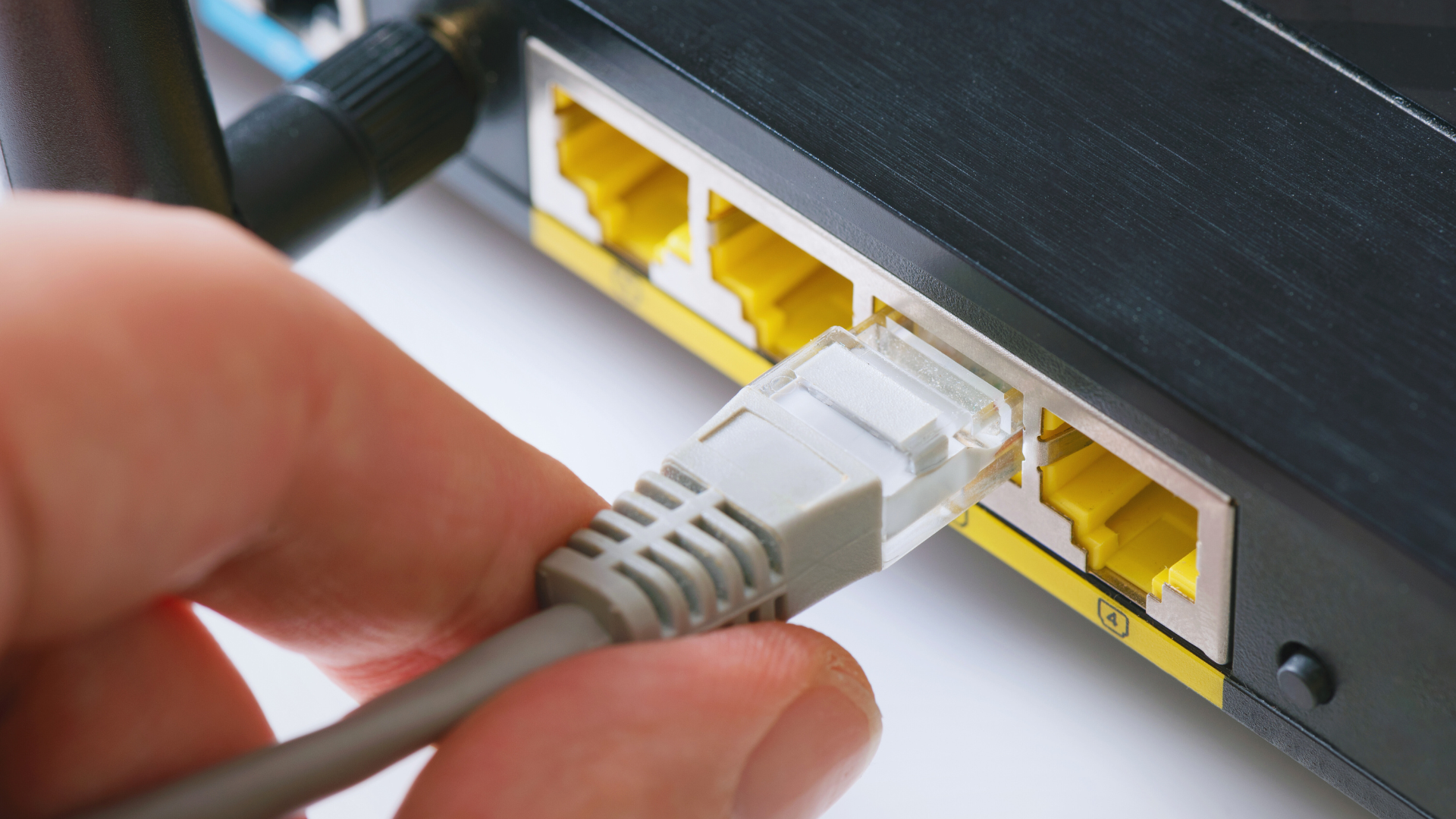
Wired Ethernet connections generally provide lower latency and more consistent speeds compared to Wi-Fi. Using a Cat5e or Cat6 Ethernet cable can offer speeds up to 1 Gbps or higher, reducing packet loss and jitter.
Connect your gaming device directly to the router or modem. Avoid long or damaged cables as they can degrade signal quality. This setup bypasses common Wi-Fi interferences like walls or electronic devices.
Most gaming routers support Ethernet ports optimized for low-latency traffic. Ensure your network adapter drivers are up to date to maintain optimal performance. This simple change often results in noticeably smoother gameplay.
Improving Wi-Fi Signal Strength
If Ethernet is not an option, optimizing your Wi-Fi signal is essential. Place your router in a central, elevated position free from obstructions and electronic interference.
Use the 5 GHz frequency band when possible, as it offers faster speeds and less interference than 2.4 GHz. However, note that 5 GHz has a shorter range, so proximity matters.
Avoid crowded Wi-Fi channels by selecting a less congested one via your router’s settings. You can use Wi-Fi analyzer apps to identify the best channels.
Upgrading to a dual-band or mesh Wi-Fi system can also improve signal strength and stability across a larger area.
Reducing Network Congestion
Network congestion occurs when multiple devices compete for bandwidth, causing lag spikes. Limit bandwidth-heavy activities like streaming, large downloads, or backups during gaming sessions.
Prioritize gaming traffic using Quality of Service (QoS) settings on your router. This feature allocates more bandwidth to your gaming device and reduces interruptions.
Disconnect unused devices or schedule their updates when not gaming. Also, make sure your router’s firmware is current to access the latest performance and security improvements.
If persistent congestion occurs, consider increasing your internet plan’s speed or upgrading your hardware for better capacity.
Upgrading Internet Services
Improving your internet connection is essential to reducing lag during online gaming. Factors such as speed and latency directly impact gameplay smoothness and responsiveness.
Choosing the Right Internet Speed for Gaming
Internet speed affects how quickly your data is sent and received. For most games, a download speed of at least 15 Mbps supports smooth gameplay. However, upload speed is often overlooked but crucial for online multiplayer games; aim for at least 5 Mbps upload speed.
Higher speeds reduce buffering and loading times, but don’t always guarantee lower lag. The stability of your connection plays a bigger role once the minimum speed requirements are met. Avoid basic DSL plans that offer less than 10 Mbps, as they struggle with real-time data transfer.
Use tools like Speedtest to check your current speeds. If consistently below the recommended levels, consider plans offering fiber-optic or cable connections for better performance.
Selecting an Internet Service Provider with Low Latency
Latency, measured in milliseconds (ms), indicates the delay between your actions and the server’s response. Lower latency is vital for fast-paced games like shooters or real-time strategy.
Choose providers known for low ping times and minimal packet loss. This often means selecting an ISP with servers geographically closer to your gaming servers. Check ISP reviews and ask about their gaming-specific features, such as prioritized routing or gaming accelerators.
Fiber-optic ISPs frequently offer the lowest latency compared to satellite or DSL. Avoid providers that rely heavily on congested networks, especially during peak hours.
Contact potential providers to inquire about their latency averages and gaming support options before upgrading.
Configuring Router and Network Settings
Adjusting your router settings can have a direct impact on reducing lag while gaming. Prioritizing gaming traffic and ensuring the right ports are open helps maintain a stable, low-latency connection.
Enabling Quality of Service (QoS)
Quality of Service (QoS) settings let you prioritize gaming data over other types of network traffic. This reduces delays caused by bandwidth-heavy applications like streaming or downloads running simultaneously.
To enable QoS, log into your router’s admin panel, usually accessed via its IP address (e.g., 192.168.1.1). Locate the QoS section, which may be under advanced settings. Set priority rules to give your gaming device or console the highest priority.
Some routers allow you to prioritize by device IP, MAC address, or specific applications. Make sure the device you use for gaming always receives top priority. Adjusting these settings ensures game packets get sent faster, reducing lag.
Port Forwarding for Gaming Traffic
Port forwarding opens specific ports on your router to improve communication between your console or PC and the game servers. This helps reduce connection drops and latency caused by blocked or filtered traffic.
Identify the ports required by your game, which are often listed on the developer’s support site. Access your router’s port forwarding section and create new rules. Enter the port numbers, choose the protocol (TCP, UDP, or both), and assign them to your gaming device’s IP.
For example:
| Game | Ports to Forward | Protocol |
| Call of Duty | 3074, 3478-3480 | UDP & TCP |
| Fortnite | 5222, 5795, 12000-64000 | UDP |
Make sure your device has a static IP to prevent port forwarding rules from breaking. This setup helps maintain a direct connection for gaming traffic, lowering lag.
Optimizing Gaming Devices
Ensuring your gaming device runs efficiently directly impacts online performance. Updating essential software components and controlling system resources can reduce lag and maintain smooth gameplay.
Updating Network Drivers and Firmware
Outdated network drivers and firmware often cause connectivity issues and increased latency. Check your device’s manufacturer’s website regularly for the latest updates specific to your network adapter. Installing these ensures compatibility with current hardware standards and improves data transfer speeds.
Use Device Manager on Windows to verify your network adapter version, or appropriate settings on other systems. Firmware updates for your router also play a crucial role; they fix bugs and enhance stability. Many routers allow updates via their web interface or mobile applications.
Keep in mind to restart your device after updates to apply changes effectively. This step minimizes packet loss caused by outdated or corrupted software components.
Disabling Background Applications
Background applications consume bandwidth and system resources, leading to increased lag. Before gaming, close all unnecessary programs such as file-sharing software, web browsers, and streaming services.
Use Task Manager (Windows) or Activity Monitor (Mac) to identify processes with high CPU, memory, or network usage. Disable or pause these to free up system capacity. Some applications run startup services that continue consuming resources, so consider disabling them through system settings.
Games require a high priority on system resources. Closing background tasks ensures your internet connection and CPU power focus solely on the game, reducing interruptions and improving responsiveness.
Selecting the Best Game Servers
Choosing the right game server affects your connection quality and lag significantly. Focus on factors like physical distance, server load, and ping times to optimize your gaming experience.
Choosing Servers Closest to Your Location
Selecting servers geographically near you reduces the distance your data travels, which directly lowers latency. Many games display server regions or cities; prioritize those that are physically the closest.
Internet routing, however, can impact actual latency, so proximity might not always guarantee the lowest ping. Testing multiple nearby servers using built-in tools or external ping tests helps identify the best option.
Some games offer automatic server selection based on your location and network quality. Enable this feature if unsure, but manually switching servers may yield better performance in some cases.
Monitoring Server Load and Ping Times
A server’s current load impacts its responsiveness. High player counts or intense activity can increase lag even on nearby servers.
Check the server status or population before joining. Many games and third-party websites provide real-time load information, enabling informed choices.
Ping times measure round-trip delay between you and the server. While selecting a close server typically lowers ping, always verify ping with server selection tools.
Keep a list of servers with consistently low ping and light load. Rotate between them if lag spikes occur during peak times.
In-Game Adjustments to Minimize Lag
Adjusting settings within the game can significantly improve performance and reduce lag. Key changes include modifying graphics and resolution as well as enabling modes designed to prioritize smoother gameplay.
Lowering Graphics and Resolution Settings
Reducing graphics quality lowers the demand on your hardware. Focus on turning off or lowering intensive options such as shadows, anti-aliasing, and texture quality.
Lower resolutions decrease the number of pixels the system renders, which can boost frame rates. For example, switching from 1080p to 720p can help maintain a more stable connection and reduce input delay.
Most games allow you to customize these settings individually, so start by lowering the most resource-heavy options. Use presets labeled “Low” or “Performance” if available, as they optimize multiple settings quickly.
Enabling Performance Modes
Many games include performance or low-latency modes that prioritize smooth gameplay over visual fidelity. Enabling these can limit background effects and increase frame rates.
Performance modes may disable certain graphical enhancements like motion blur or bloom, which have minimal impact on gameplay but consume resources. This allows the system to allocate more processing power toward maintaining a steady connection and faster frame rendering.
Check your game’s settings menu or launcher for options such as “Performance Mode” or “Low Latency Mode.” Enabling these features often provides immediate improvements in responsiveness and reduces lag spikes.
Minimizing Lag from External Factors
Reducing lag often involves controlling other devices and network activities that compete for bandwidth. Adjusting when and how household devices use the internet can lower interruptions and improve gaming performance.
Decreasing Household Device Usage
Many devices connected to the same network share bandwidth, which can increase latency during gaming. Streaming videos, video calls, or large downloads consume significant data and impact your game’s responsiveness.
To reduce lag, limit or pause high-bandwidth activities on other devices while gaming. You can also prioritize your gaming device using Quality of Service (QoS) settings on your router, which allocates more bandwidth to your console or PC.
Turning off automatic updates and background app data usage on other devices helps preserve bandwidth. Simple actions like asking others to reduce streaming or downloads during your gaming sessions make a noticeable difference.
Scheduling Gaming During Low-Traffic Hours
Internet traffic fluctuates throughout the day due to local user demand. Peak hours often coincide with evenings or weekends when many people are online, resulting in slower speeds and higher latency.
Playing during off-peak times—early mornings or late nights—can improve connection stability. ISPs often allocate more bandwidth to users when network congestion is low.
Check your ISP’s usage patterns or use speed test results at different times to identify when your connection is fastest. Planning gaming sessions accordingly reduces the chance of lag caused by external traffic spikes.
When to Seek Professional Help
If lag issues persist despite attempting standard troubleshooting like restarting your router or updating drivers, it may be time to consult a professional. Persistent lag can indicate deeper network or hardware problems that require expert diagnosis.
Consider reaching out to a technician if you experience any of the following:
- Consistent high ping or latency spikes even after resetting the equipment
- Frequent disconnections or packet loss during gameplay
- Hardware malfunctions such as overheating or failing network adapters
- Complex network setups, like multiple routers or custom configurations, complicate troubleshooting
Professionals can run advanced diagnostics to pinpoint whether the problem lies with your internet service provider (ISP), your hardware, or your local network configuration. They can also optimize your setup for better performance.
If your ISP cannot resolve latency or connectivity problems, a network specialist can analyze traffic issues or recommend hardware upgrades. In some cases, upgrading to a business-grade internet service might be necessary for stable, low-lag gaming.
Here is a quick checklist to determine if professional help is needed:
| Issue | Action |
| Lag remains constant after usual fixes | Contact technician |
| Internet speed tests show normal results | Check for hardware problems |
| The network is overly complex | Seek network specialist advice |
| ISP confirms no service issues | Consider a hardware upgrade or expert analysis |